































































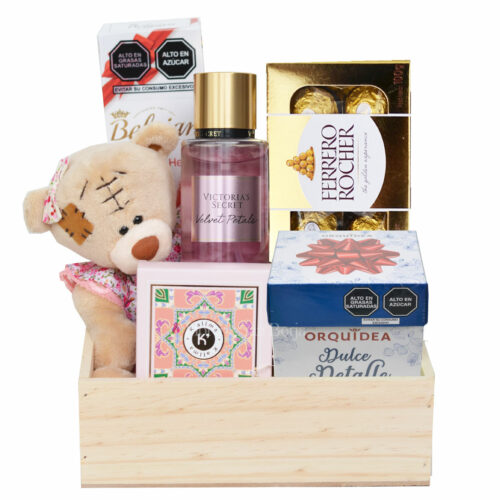

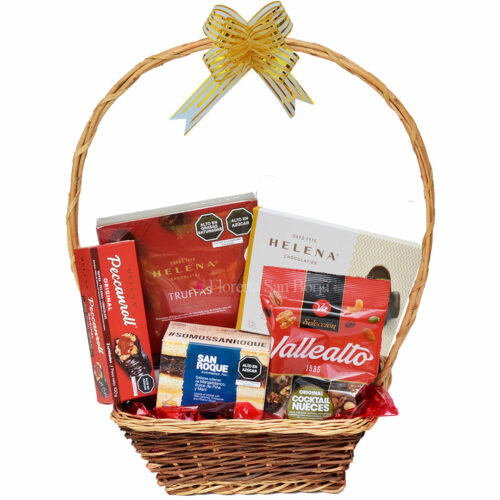

















1- We suggest, before ordering, to eliminate all temporary files and cookies from your internet explorer. Go to a category and choose a product. Click on the "See details" button.
| 1.- Click on the green button, "Buy". |
|
2- You will see the details of the product. Click on the link "Add to Cart".
| 1.- "Add to cart" button. |
|
3- Shopping Cart, here you can review all the products you've placed in your shopping cart.
1.- If you wish to add more products to your order as flower arrangements, chocolate bombons, balloons, cakes or teddy bears. Click on the button "Return Home and continue shopping".
2.- If you have finished adding products, click on the "Payment" button,
3.- If you want to erase a product from your shopping cart, just click on the trash icon. |
 |
4- Enter your e-mail. If it's the first time you use our new system, select "No, I am a new customer" to get registered. Then click on the link "Continue". For your next visit just enter your e-mail and password.
| 1.- After entering your e-mail, select if you are a new custumer to get registered. Or enter your password if you are a returning customer. Then click on "Continue". |
 |
5- To get registed fill all our form. Then click on "OK".
1.- Fill our form and then click on the link "OK" to save your personal data.
2.- Enter your password and remember it. For your next shopping you will only need to enter your e-mail and password.
3.- Please dont write in the address field symbols as: #]/&"·$%/&()=![, these could cause errors in your order. |
|
6- Fill all the shipping information form. If you don't know the Zip code, just fill it with an "x". Then select the delivery zone (Lima6, Lima5....). Then check all the data entered.
1.- Fill all our order form. In zip code just put an "x".
2.- Check all the data entered.
3.- Please dont write in the address field symbols as: #]/&"·$%/&()= |
7- Enter the message of the card that will go with your gifts. Select the delivery date. Put in our comments section any note that would help us with the delivery of your gifts.
1.- Fill all our order form.
2.- Check all the information entered and click on the "Payment" Button. |
|
8.- You will enter to our payment system 2CO, 100% secure. Check the information and Click on the link "check out".
1.-Check the entered information. At the right hand side of this screen you would see a preview of the information of your order.
2.- Check that the amount of your purchase corresponds to the items selected + delivery charge.
3.- Click on "Checkout" button. |
|
9- Check now your billing information. Some of the information will be filled by default. Then click on "next".
1.- Check all your information, and fill all the fields that apply. Bold fields are required.
2.- Click on the "next2 button. |
|
10- Payment method. Select your payment method. Then click on "next" button.
1.- Select your payment method.
2.- We accept credit cards Visa, Master Card, American Express, Diners Club, Discover. Also Debit cards and other payment methods.
3.- Click on the "next" button. |
|
11- Finally, if you selected credit card payment method. You will enter this screen, enter the required data and click on "next" button.
1.- Enter your credit card number, CVV code and expiration date
2.- The CVV code is also known as security code, its the last 3 digits of the number at the back of your credit card in the place were you place your signature. For American Express cards is the 4 digits at the front of the card
3.- Click on "next" button. |
 |
In case you have any questions feel free to call us to the following phone numbers 511-2258349 o 511-4751117 and ask for Guillermo or send us an e-mail to questions@floreriasb.com.pe or use our new live chat function for help. |